Using Lineage Flash Tools
Lineage Flash Tools is a web based utility that lets you flash LineageOS recovery, boot, and OTA packages directly from your browser, without installing adb and fastboot locally. Access it at flash.lineageos.org.
The tool provides four separate modes, shown as tabs. Each tab is a self-contained tool with its own connect button and actions:
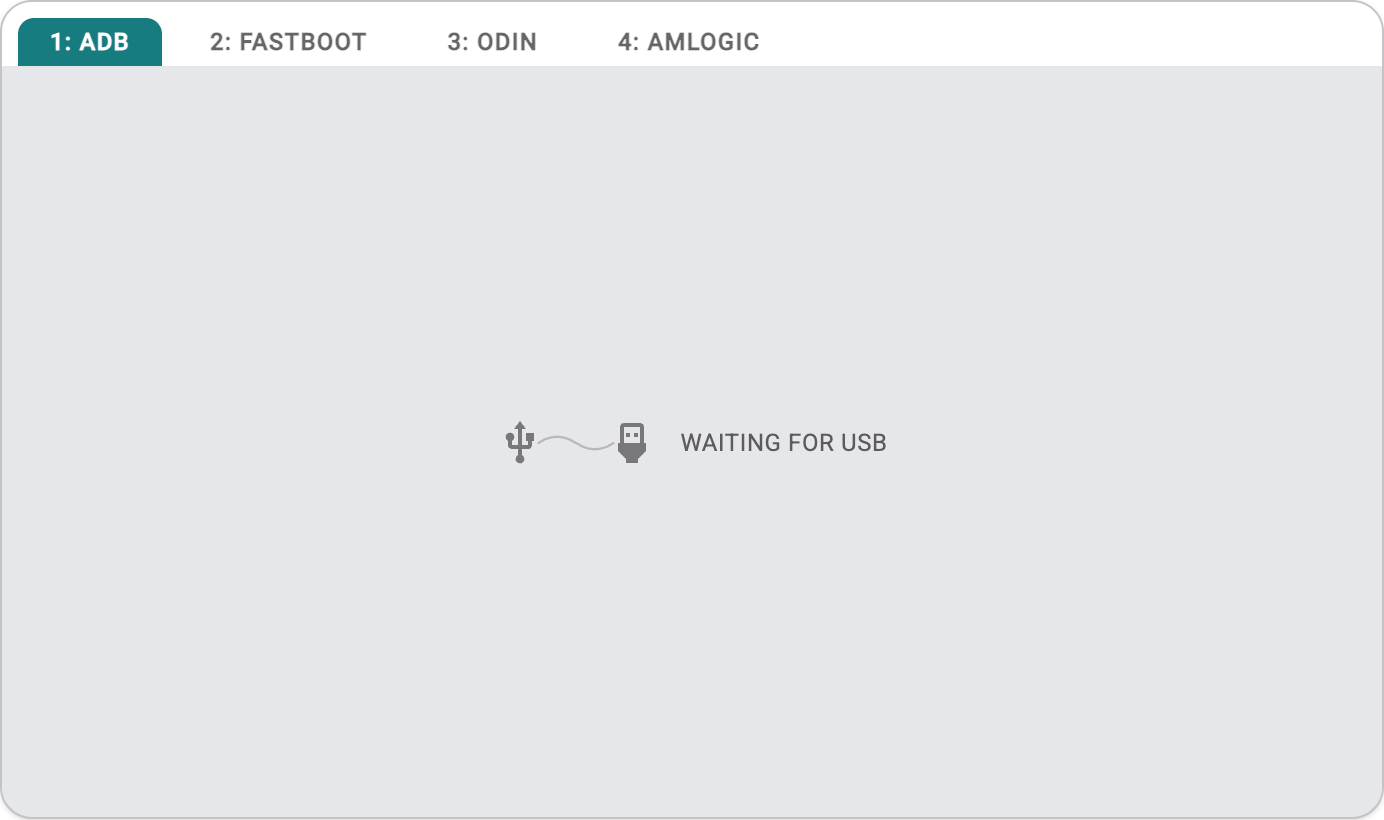
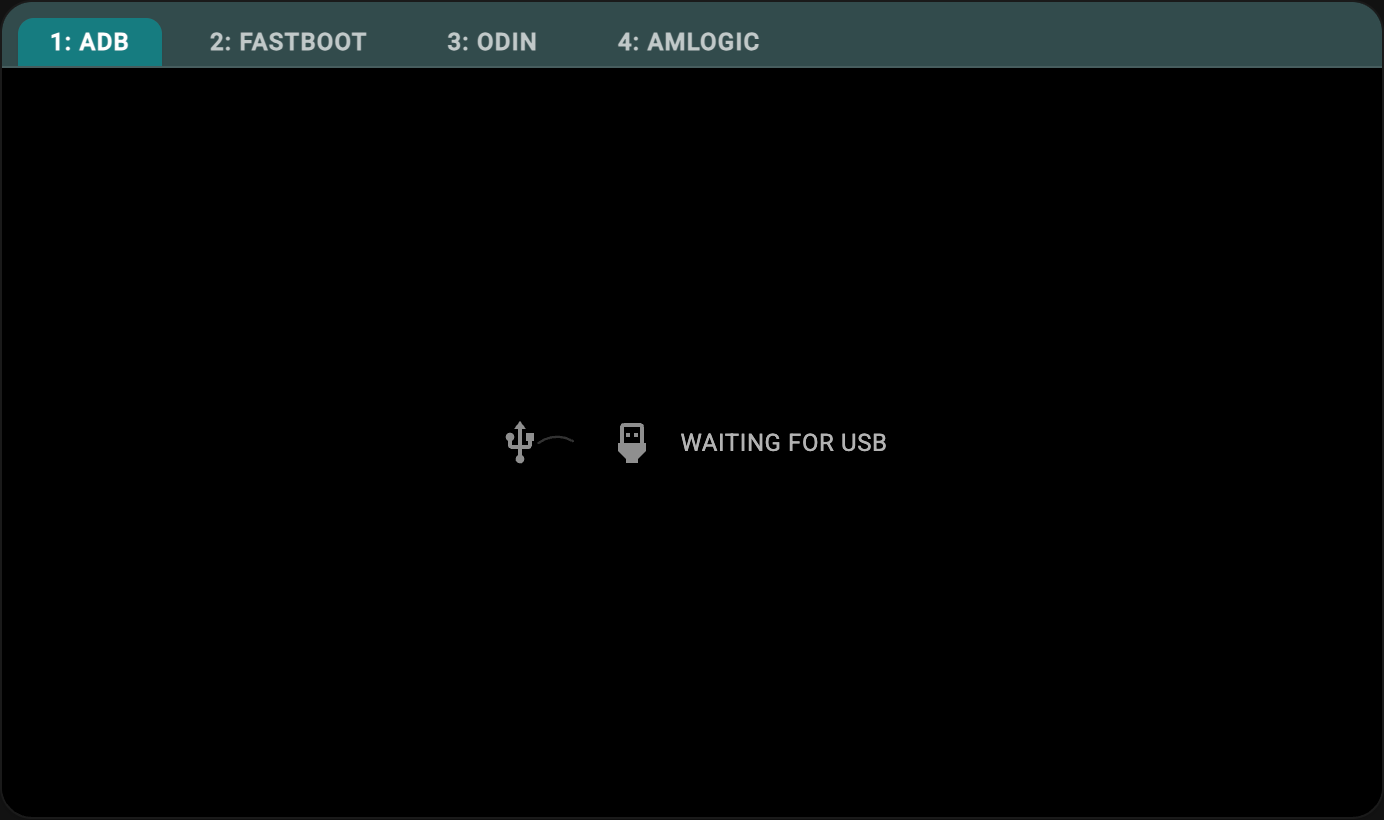
- ADB (Recovery mode)
- Fastboot (Fastboot / Fastbootd mode)
- Odin (Samsung download mode)
- Amlogic (USB burn mode)
As installation steps vary by device, please refer to the device-specific installation instructions.
Requirements
- A browser supporting WebUSB such as Chrome or Edge.
- on Windows: You may need to install the appropriate USB drivers for WebUSB to detect your device in ADB/Fastboot mode.
- on Linux: You may need to configure
udevrules to allow browser access to USB devices. (Not required on distributions using systemd v261 or newer.)
Connect your device
ADB tab
adb kill-server before using the web flash tools.- If your device is already booted into recovery, skip to step 3. Otherwise, enable USB debugging in developer options.
-
Click Connect and select your device from the browser’s pop-up list.


From here you can use the Reboot recovery or Reboot bootloader buttons to reboot the device into the mode you need.
- In LineageOS recovery, select
Apply update > Apply from ADBusing the touch screen, or use the volume keys to navigate and the power button to select. -
Click Connect again if the device disconnected during the reboot, then select it from the pop-up list.


Use Choose ZIP to select a
lineage-*.zippackage, then click Sideload to sideload it to the device.
Fastboot tab
- Reboot your device to bootloader mode before connecting.
- Click Connect and select your device from the browser’s pop-up list.
- Use the available actions:
| Action | Purpose |
|---|---|
| Boot image | Temporarily boot an image, such as LineageOS Recovery, without flashing it. |
| Flash image | Flash an image to a selected partition (for example, installing LineageOS Recovery to recovery). |
| Wipe super | Erase and recreate dynamic partitions using super_empty.img (required for some retrofitted dynamic partition devices). |
| Get variable | Read a bootloader variable, such as version-bootloader or the active slot. |
| Set active slot | Switch the active slot (A/B devices). |
| Reboot | Restart the device into the system, recovery, or bootloader. |
| Run command | Execute a custom fastboot command, such as flashing unlock. |
Odin tab
- Reboot your device to Samsung download mode before connecting.
- Click Connect and select your device from the browser’s pop-up list. On Windows, you can instead use serial mode, which skips the need to install Samsung’s USB drivers.
- Select the firmware file(s) to flash and start the flash.
Amlogic tab
- Reboot your device to USB burn mode before connecting.
- Click Connect and select your device from the browser’s pop-up list.
- Select the burn image and start the flash.
Resolve USB transfer errors
Sometimes Android devices have trouble communicating through certain USB ports, cables, or hubs due to the high throughput of data required by the flashing process. To resolve transfer errors:
- Don’t use USB hubs, USB extension cables or adapters if possible.
- Try a different USB cable.
- Try a different USB port.
Need help?
You can find assistance with LineageOS on our subreddit, on our Discord server, or in #LineageOS on Libera.Chat.